Python is an open-source programming language that can be freely downloaded and installed from its official website. In this guide, however, we will use Python through an environment manager called Miniforge. Miniforge contains conda, which allows you to install specific Python versions and manage project dependencies in isolated environments. You can think of these environments as self-contained “boxes” that include everything a project needs: a particular Python version and the required packages. This isolation ensures that updates or changes in one environment do not affect others, making it easy to manage and switch between projects with different requirements.
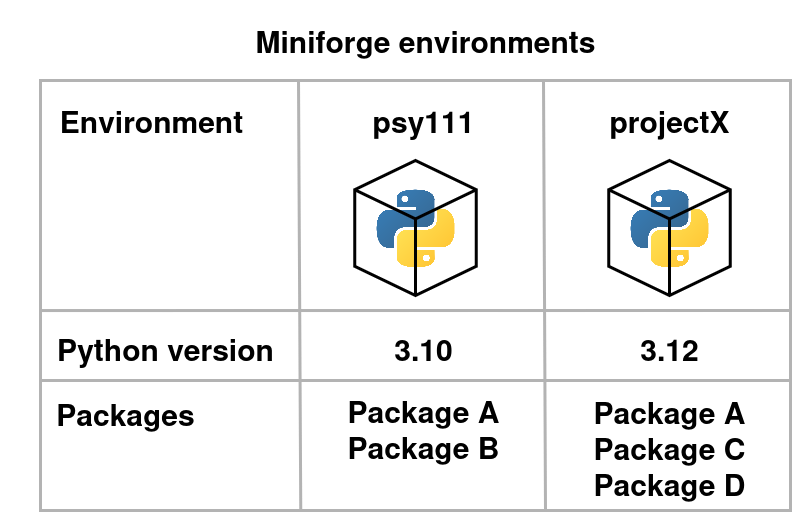
Figure 1:Version management with Miniforge/Conda.
Conda
You can download and install Conda through Miniforge as described in the documentation.
Linux/MacOS
Open a terminal in the folder where your .sh script is located and run the script (hint: after typing bash Miniforge3 you should be able to hit Tab to autocomplete the command):
bash Miniforge3-$(uname)-$(uname -m).shAfter a successful installation, simply open a new terminal. You should now see a (base) in the beginning of each line, which tells you that the installation was successful.
Windows
On Windows, simply run the .exe file and install everything. We also recommend you to check the “Add Miniforge3 to my PATH environment variable” checkbox during installation. This will enable you to use conda from any terminal, and not just Miniforge Prompt, which will be installed in any case. Once the installation is finished, depending on your choice during the installation, you can either open your standard terminal or the Miniforge Prompt. In any case, you should then be greeted with a (base) in the beginning of the line, which means the installation was successful and you are now in the base environment.
Visual Studio Code
In addition to Miniforge, we will also download and install a programming environment. For this, we use Visual Studio Code, which you can download from here. In addition to the default installation settings, we recommend you to check the “Open with code” checkboxes for easier usability later on.